
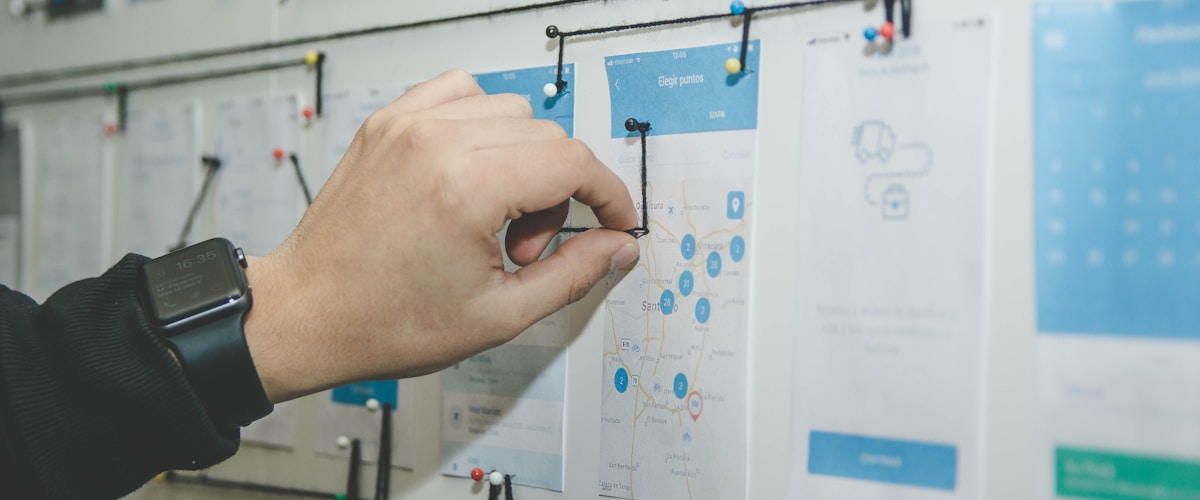
The gap between design and development has historically been one of the most expensive friction points in software delivery. A designer creates a pixel-perfect mockup, throws it over the wall, and a developer interprets it — often incorrectly. The result is rounds of revisions, missed details, and frustration on both sides.
Figma has done more to close this gap than any tool in the last decade. But having Figma is not the same as using Figma well. The difference between a Figma file that accelerates development and one that creates more confusion than it resolves comes down to workflow discipline. Here is how we structure Figma workflows in our UX/UI design practice at Pepla to make the designer-developer handoff seamless.
Auto Layout: Think in Flexbox
Auto Layout is Figma's equivalent of CSS Flexbox, and using it consistently is the single most impactful workflow improvement for developer-friendly design. When a designer uses Auto Layout, the design implicitly communicates padding, gap, alignment, and overflow behaviour — the same properties a developer will implement in CSS.

When Auto Layout is not used, measurements become ambiguous. Is that 16px gap between elements intentional spacing or an artefact of manual positioning? Does the container grow with its content or have a fixed height? Auto Layout answers these questions visually and unambiguously.
Auto Layout is Figma's Flexbox -- use it on every container, and your design implicitly communicates padding, gap, and overflow to developers.
Best practices for Auto Layout in developer-friendly designs:
- Apply Auto Layout to every container. Not just cards and buttons — navigation bars, page sections, form groups, and entire page layouts should use Auto Layout. This mirrors how CSS layout actually works.
- Use consistent spacing values. Align your Auto Layout spacing to your design tokens — 4px, 8px, 12px, 16px, 24px, 32px, 48px. Avoid arbitrary values like 13px or 27px that suggest manual positioning rather than systematic spacing.
- Set resizing behaviour explicitly. Figma's "Hug contents," "Fill container," and "Fixed" resizing options map directly to CSS concepts (
auto,flex: 1/width: 100%, and fixed pixel values). Setting these intentionally communicates responsive behaviour to developers. - Name your Auto Layout frames. A frame named "Card / Header" is infinitely more useful to a developer than "Frame 247." Naming conventions should reflect the component hierarchy.
Variants and Component Properties
Figma variants allow a single component to represent all its states and configurations. A button component might have variants for primary/secondary/ghost, small/medium/large, default/hover/active/disabled. This is not just a design organisation technique — it directly maps to the prop API that a developer will implement.
When a developer inspects a component and sees clearly defined variants with consistent naming, they can immediately understand the component's API. The variant names become the prop values. The variant properties become the prop names. There is no interpretation gap.
Component properties — boolean toggles, text overrides, instance swaps — further reduce the gap. A card component with a boolean "Show badge" property and an instance swap for "Icon" communicates conditional rendering and slot-based composition patterns that are immediately familiar to any frontend developer.
At Pepla, our designers name variants using a consistent convention: State=Default, Size=Medium, Variant=Primary. This maps directly to component props in React, Angular, or Vue. The developer does not need to decode the designer's intent — it is encoded in the component structure.
Name your Figma variants exactly like component props -- when design speaks the same language as code, handoff disappears.
Design Tokens in Figma
Design tokens — named values for colours, spacing, typography, shadows, and border radii — should be the single source of truth shared between design and development. In Figma, tokens are managed through styles (for colours and typography) and increasingly through the Tokens Studio plugin (for the full token spectrum including spacing, sizing, and component-specific tokens).

The workflow is: define tokens in Figma (or in a shared JSON format), export them to platform-specific formats (CSS custom properties, SCSS variables, Tailwind config), and reference the same token names in both design and code. When a designer uses color/primary/500 in Figma and a developer uses var(--color-primary-500) in CSS, they are referencing the same value from the same source of truth.
This eliminates the class of bugs where "the green in the design doesn't match the green in production." If both sides consume the same tokens, the values are guaranteed to match.
Dev Mode and the Inspect Panel
Figma's Dev Mode, introduced in 2023, provides a dedicated interface for developers working with design files. It surfaces the information developers actually need: CSS values, spacing measurements, component prop values, and asset export settings — without the design editing tools that can be distracting and occasionally dangerous in developer hands.
The inspect panel shows:
- CSS properties — font-size, colour, padding, border-radius, box-shadow, extracted directly from the Figma layer properties.
- Spacing and measurements — hover between elements to see exact distances, with values shown in your configured unit system.
- Component metadata — which component an instance is based on, what props are set, and links to the component documentation.
- Ready-for-dev markers — designers can flag sections as ready for development, creating a clear handoff workflow.
The key insight is that Dev Mode works best when designs are well-structured. Auto Layout provides meaningful CSS values. Named components provide clear prop mappings. Design tokens provide consistent variable names. Without these foundations, Dev Mode just gives you precise measurements of a messy file.
Dev Mode is only as good as the file it inspects -- invest in structured Auto Layout and tokens before expecting clean CSS output.
Handoff Best Practices
Good handoff is not a moment — it is a process. The "designer finishes, developer starts" model is outdated. At Pepla, we practice continuous handoff where developers are involved from the design phase:
- Developers attend design reviews. Not to approve aesthetics, but to identify implementation challenges early. A design that looks simple but requires a custom scroll behaviour or a complex animation is better discussed before it is finalised.
- Designs include interaction annotations. Static screens do not communicate hover states, transitions, loading sequences, error states, or empty states. Use Figma prototyping for key flows and add annotation layers for edge cases.
- Responsive breakpoints are designed, not assumed. If your application supports mobile, tablet, and desktop, there should be designs for each breakpoint — not just desktop with a verbal instruction to "make it responsive."
- A living handoff document accompanies each feature — a Figma page or section that lists the components used, any new components needed, interaction requirements, and links to related designs.
Component Naming Conventions
Naming is where design systems either succeed or fail at the handoff boundary. When the designer calls it "CTA Block" and the developer calls it "HeroAction," you have a communication problem that will persist for the life of the project.
Establish a shared naming convention at the start of the project and enforce it in both Figma and code. A common pattern is category/component/variant: Navigation/Navbar/Desktop, Forms/Input/Error, Cards/ProductCard/Compact. These names should be identical in the Figma component library and the code component library.
Branching in Figma
Figma branching allows designers to work on feature designs in isolation — similar to Git branches for developers. A designer creates a branch for a new feature, iterates on the design, gets feedback, and merges the approved changes back to the main file.
For development teams, this is valuable because the main Figma file always represents the current production design. You never need to ask "is this the latest version?" If it is on main, it is current. Feature branches represent work in progress that may change.
The workflow maps cleanly to development: a feature branch in Git corresponds to a feature branch in Figma, and both merge to main when the feature is complete. This keeps design and development synchronised at the branching level.
Figma branching mirrors Git branching -- if it is on main, it is current. Feature branches represent work in progress that may still change.
Plugins That Help Developers
Several Figma plugins specifically improve the developer experience:
- Tokens Studio — manages design tokens in Figma and syncs them to code repositories via JSON files.
- Stark — accessibility contrast checking and colour-blind simulation directly in Figma.
- Locofy / Anima — generates code from Figma designs. The output rarely matches production standards, but it can be useful as a starting point for simple layouts.
- Figma to HTML (various) — useful for rapid prototyping, not for production code generation.
- Content Reel — populates designs with realistic data (names, images, addresses) so developers see designs that reflect real content, not "Lorem ipsum."
The best Figma workflow is one where a developer can open a design file, understand the component structure, read the spacing and token values, and begin implementation — without asking the designer a single question. That is the bar we aim for.
At Pepla, our designers work directly in Figma alongside developers -- sharing the same sprint cadence, attending the same standups, and delivering design assets that developers can implement without guesswork.
Figma is not just a design tool. When used with discipline, it is a shared language between design and development — a single source of truth that both disciplines can read fluently. Invest in the workflow, and the handoff problems that plague most teams simply disappear.